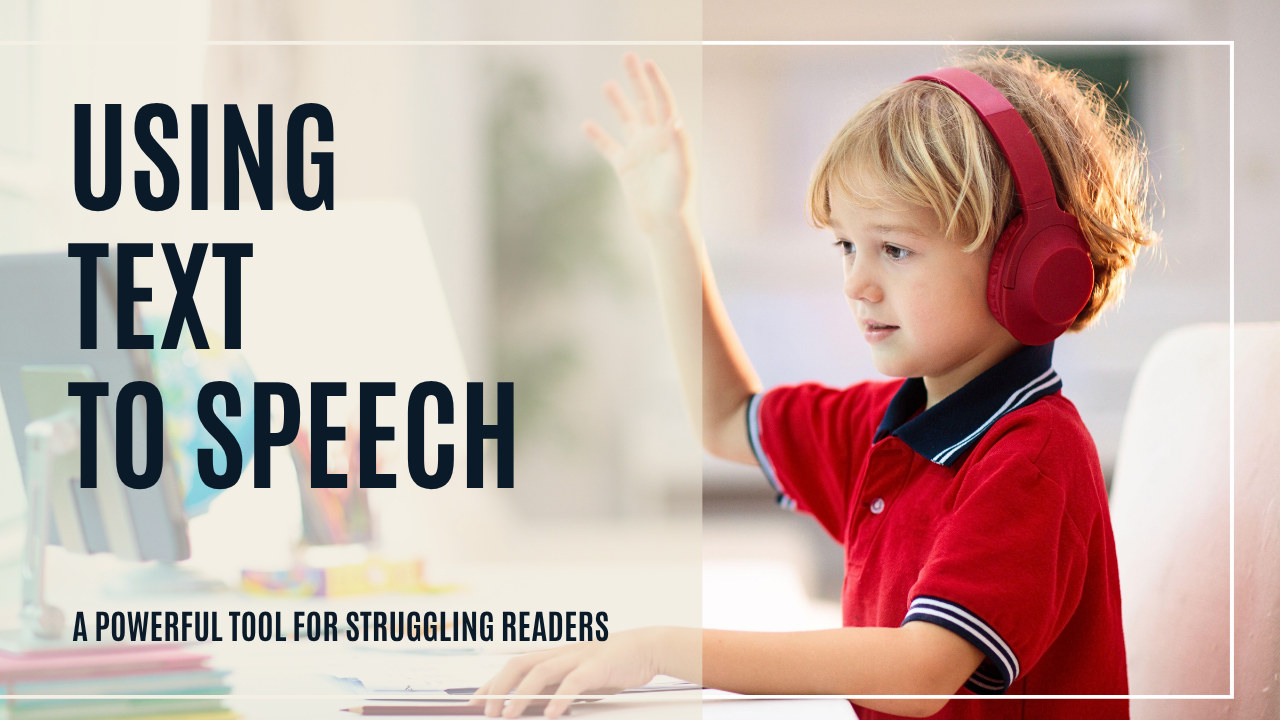
Text-to-speech is assistive technology that converts written words into spoken words, giving struggling readers access to the same material as their peers. For students with dyslexia, reading printed text can be exhausting and discouraging. TTS doesn’t replace reading instruction—it removes the bottleneck of decoding so your child can keep learning, building confidence, and engaging with content while their reading skills develop.
What is text-to-speech?
Text-to-speech is a type of assistive technology that converts written words into spoken words. With TTS, your child can listen to books, assignments, emails, or web pages while following along visually on the screen. It can be a game-changer for learners who struggle with decoding but still want—and deserve—access to the same material as their classmates. Because TTS pairs hearing with seeing, it also reinforces word recognition over time rather than just bypassing it.
How does TTS help a child with dyslexia?
When decoding takes up all of a child’s mental energy, there’s little left for understanding the actual content. TTS frees up that energy. For learners with dyslexia, it:
- Increases reading independence—your child can get through material without an adult reading aloud.
- Reduces frustration and fatigue, so reading time doesn’t end in tears.
- Improves comprehension and vocabulary by letting your child focus on meaning.
- Reinforces sight-word recognition by pairing the sound of a word with its written form.
- Supports writing—hearing their own draft read back helps a child catch mistakes they’d miss reading silently.
TTS is one of the most accessible forms of assistive technology for dyslexic learners, and it works alongside, not instead of, structured literacy instruction.
How do I turn on the built-in TTS on my device?
The good news is that TTS is widely available, and the tools already on your devices are free. Here’s where to find them:
- iPhone/iPad (iOS): Go to Settings > Accessibility > Spoken Content, then turn on Speak Selection or Speak Screen. Swipe down with two fingers from the top of the screen to hear the content read aloud.
- Mac: Go to System Settings > Accessibility > Spoken Content, then enable “Speak selection” or “Speak items under the pointer.”
- Windows: Use Narrator (the built-in screen reader) at Start > Settings > Accessibility > Narrator, or use the Microsoft Edge Read Aloud feature for webpages and PDFs.
- Android: Go to Settings > Accessibility > Select to Speak, tap the icon, and select the text you want read aloud.
What free TTS extensions and apps are worth trying?
If the built-in tools don’t fit your child’s workflow, browser extensions and dedicated apps give you more voices and controls:
- Chrome extensions: Read Aloud (free, reads text from web pages), Natural Reader (high-quality voices with pace and voice settings), and Google Text-to-Speech (works on Android and Chrome-based devices).
- Bookshare: A free service for eligible students with dyslexia that includes TTS for thousands of titles.
- Voice Dream Reader: A highly customizable reading app for iOS and Android.
- Learning Ally: Human-read audiobooks for students with reading disabilities.
- Microsoft Immersive Reader: A free tool included in many Microsoft products, including Word, OneNote, and Edge.
For longer books and stories, you may also want human-narrated audiobooks for dyslexia, which complement TTS nicely. You’ll find more curated picks in our roundup of online resources for dyslexic children.
How do I help my child use TTS successfully?
A few simple habits make TTS far more effective:
- Start slow—use TTS with shorter assignments or high-interest reading material first.
- Pair TTS with physical books so your child can follow along visually as the words are read.
- Adjust the voice speed and type to match your child’s preferences—a too-fast voice helps no one.
- Encourage your child to use TTS when editing their own writing; hearing the text read back catches mistakes the eye skips.
Text-to-speech isn’t about replacing reading—it’s about supporting it. For learners with dyslexia, TTS opens doors to information, learning, and enjoyment that might otherwise stay locked. Used alongside an evidence-based, multisensory program like our Dyslexia Intervention Curriculum and the companion workbook on Amazon, it’s one more tool to help your child grow into a confident, independent reader.
Frequently Asked Questions
What is the difference between text-to-speech and an audiobook?
Text-to-speech uses a computer-generated voice to read any digital text aloud—assignments, web pages, emails, or e-books—while you follow along on screen. An audiobook is a pre-recorded human narration of a specific book. TTS works on almost any text; audiobooks only cover titles that have been recorded.
Does text-to-speech prevent my child from learning to read?
No. TTS doesn't replace reading instruction—it removes the decoding bottleneck so your child can access content while their reading skills develop. Pairing the spoken word with the written word on screen actually reinforces word recognition over time.
Is text-to-speech free?
Most of it is. iPhones, iPads, Macs, Windows PCs, and Android devices all include free built-in TTS in their accessibility settings. Free browser extensions like Read Aloud and services like Bookshare (for eligible students with dyslexia) add even more options at no cost.
How do I turn on text-to-speech on an iPhone or iPad?
Go to Settings > Accessibility > Spoken Content and turn on Speak Selection or Speak Screen. To hear a page read aloud, swipe down from the top of the screen with two fingers.
Can text-to-speech help with writing too?
Yes. Having TTS read a draft back aloud helps a child hear missing words, awkward phrasing, and errors they'd skip right over when reading silently. It's one of the most useful ways to use TTS for editing.